Samsung oven symbols tell you two things: which heating mode you’ve picked, and what the oven is doing right now. Mode symbols use lines for the heating elements and a fan for convection. On the display, a padlock or “Loc” means your controls are locked.
Is that symbol a fault? Usually not. Most of the ones that worry people are a lock, a heat guard or a mode rule, and you can clear them without buying a part.
Samsung was one of the brands I saw most after the Whirlpool family. When a Samsung panel ignores every touch, I look for a padlock or “Loc” before I touch a screwdriver.
Two kinds of Samsung oven, two sets of symbols
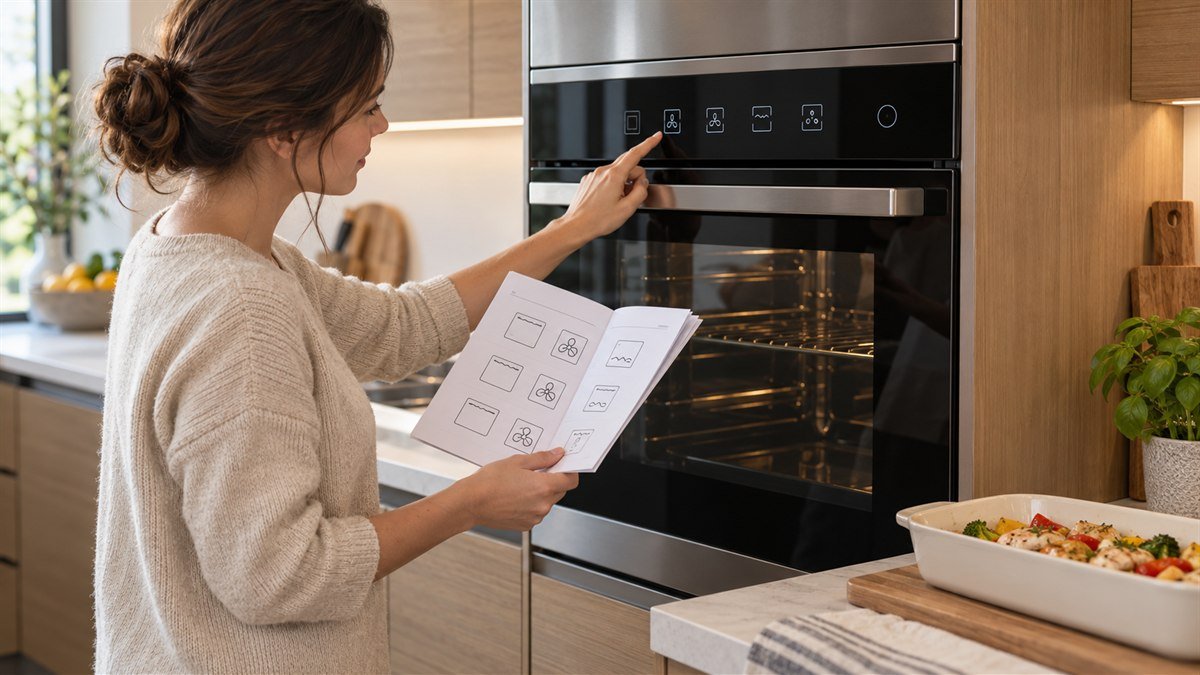
Samsung’s European support pages show the cooking modes as small pictures, one per heating pattern. Its US pages deal mostly with status icons on a range or wall oven display.
Use whichever half matches what you’re looking at. Samsung says its icons vary between models, so your manual has the final word when a picture doesn’t match.
Samsung oven symbols for each cooking mode
Samsung’s Ireland support page lists eight cooking modes, each with its own symbol.
Each comes with a suggested starting temperature in Celsius, which I’ve converted for US readers.
The fan modes come first. Convection is a fan inside a circle: the rear element heats and the fan spreads it, so you can bake on several shelves at once. Samsung suggests 170°C (338°F).
Eco Convection is the same symbol with “eco” under it. It uses less energy, runs slightly longer, and doesn’t need preheating. It’s also 170°C.
A top line with a fan is Top Heat + Convection, for roasts you want crisp, such as chicken or lasagne. A bottom line with a fan is Bottom Heat + Convection, for bread, cakes and pizza.
Samsung suggests 190°C (374°F) for both of those.
Pro-Roasting, a top line and fan over the word “PRO”, works differently from the rest. It preheats to 220°C (428°F) on its own, sears with the top element and fan, then finishes lower.
The suggested setting is 160°C (320°F), for beef, poultry or fish.
The no-fan modes are simpler. Lines at the top and bottom are Conventional, Samsung’s everyday baking mode at 200°C (392°F).
A single bottom line is Bottom Heat at 190°C, for browning the base of a pizza or quiche at the end. A zigzag under the top edge is the Large Grill at 240°C (464°F).
Mix a grill with a baking temperature and the display shows four dashes.
Samsung says “—-” appears when you set the grill between 50 and 250°C, or a normal mode to a grill level. Pick a setting that suits the mode and it clears.
Icons on a Samsung range or wall oven display
On a US range or wall oven, the display adds status icons. Some tell you what’s running, some explain why your buttons stopped working, and a few look so alike that you’ll mix them up.
Samsung’s list of oven display icons sorts them by what they report. I’ve grouped them by what they mean for you.
Icons that just tell you what’s running
Wavy lines mean the oven is preheating. A fan means convection is in use. A light bulb means the oven light is on. A probe means the temperature probe is plugged in and working.
Stars mean Self Clean is running. Clouds mean a steam function, and clouds with stars mean Steam Clean.
Keep Warm holds cooked food warm for up to 3 hours. A plug with a leaf is Energy Saving.
None of these need you to do anything. They’re status lights, and they go out on their own.
Icons that stop the buttons from working
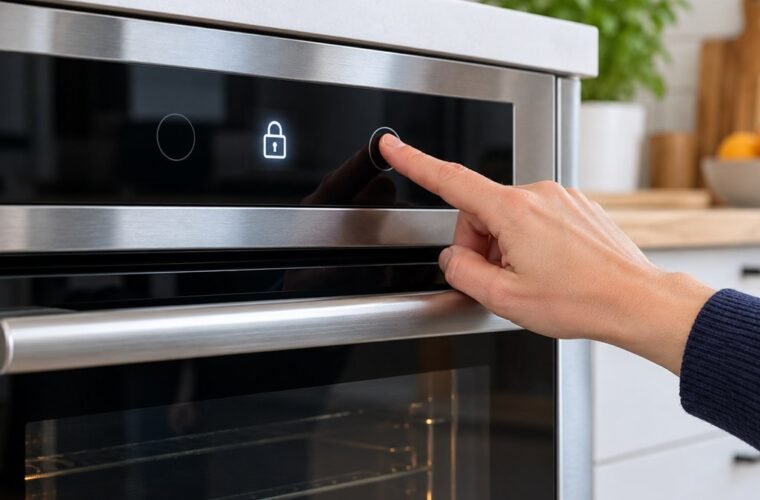
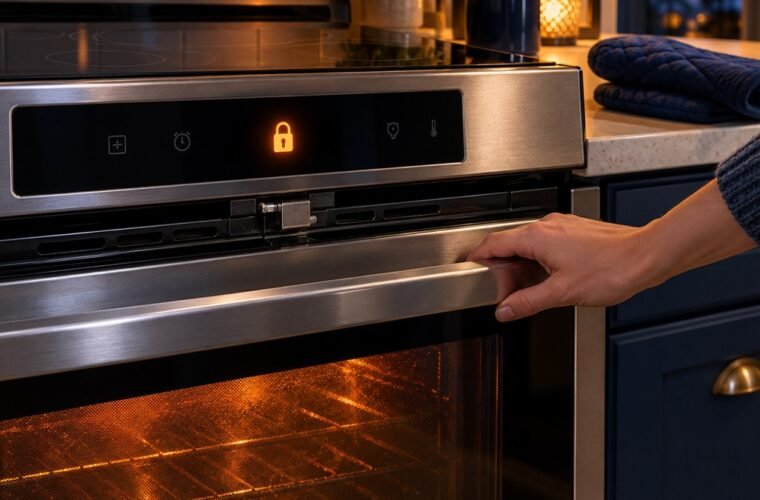
A padlock is Child Lock, and Samsung is blunt about it: the panel won’t respond until you turn it off. A key means the door is locked, which happens on its own when the oven is too hot.
“Hot” is the third one. If you press Self Clean or another function while the oven is still too hot for it, the display shows “Hot” and ignores you. Give it time to cool.
A few buttons go dark by design, too. Self Clean won’t start with the temperature probe plugged in or a partition inside.
It also waits while the cooktop or warming drawer is on. Twin Cooking only works with the partition in.
Icons that look alike
Three pairs trip people up, and Samsung warns about the first two itself.
Easy Connect and Wi-Fi. The phone-and-Wi-Fi icon is Easy Connect, which means the oven is linked to a phone or ready to pair. The plain Wi-Fi icon only means the oven is on your network.
It stays lit even when no phone is connected.
Delay Start and the timer. Delay Start means the oven will switch itself on later. The timer icons are separate. The kitchen timer is a plain countdown, while Cooking Time shows how long until the oven shuts off.
Padlock and key. The padlock locks the controls. The key locks the door. You clear them in different ways, which the next section covers.
My Samsung oven says “Loc.” How do I turn it off?
“Loc” on a Samsung oven means Control Lock is on. Samsung shows it as a padlock icon, the code “Loc” or “L”, or both. On many models you press and hold the child lock button for 3 seconds, and the instructions for turning it off are printed on the panel itself.
If the lock won’t clear, work through Samsung’s own order:
- Read the panel. Samsung says the release steps are written on it, and the button differs by model.
- Check for “Hot”. Let the oven cool if it’s just finished a hot bake or a clean.
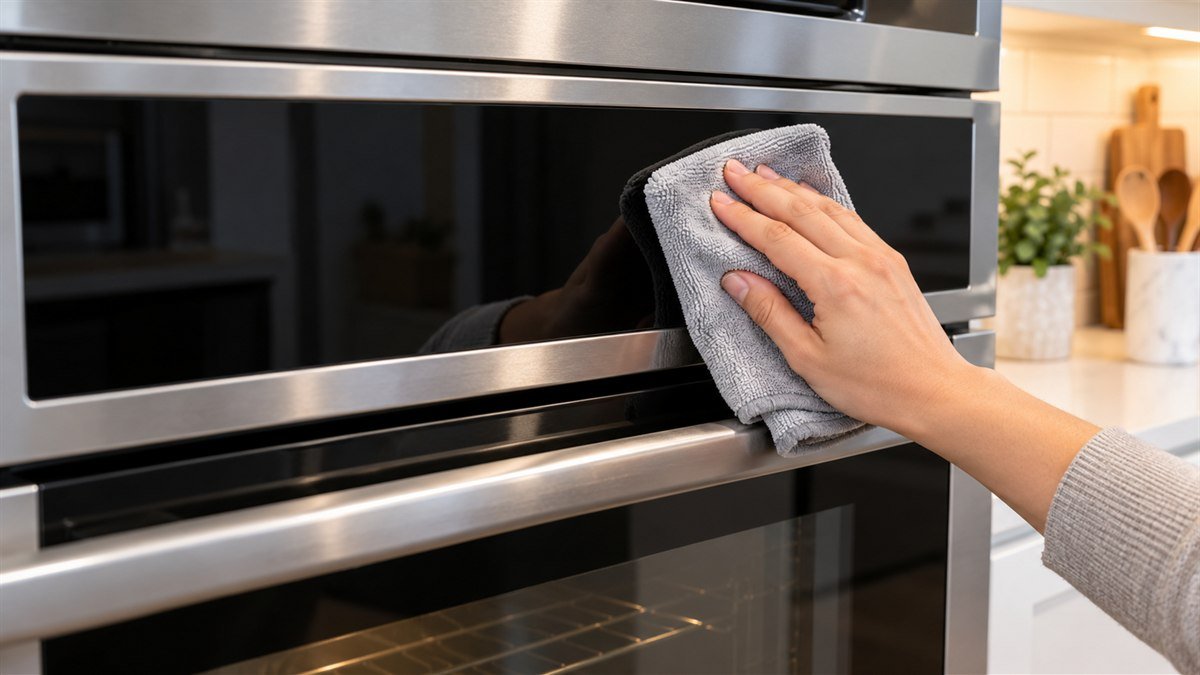
- Wipe the panel with a soft cloth. Grease or water on a touch panel can stop it from reading your finger.
- Turn the range off at the breaker, wait 30 seconds, and switch it back on.
- If the panel still doesn’t respond, request service from Samsung.
A locked door is a separate problem. Let the oven cool first.
On some models the door also locks when the power is off, so turn the range on and wait a moment. Samsung’s last step for a stuck door is 60 seconds off at the breaker.
How do I set the time on a Samsung range with no clock button?
On a Samsung range without a Clock button, set the time from the menu. On a smart dial model, tap Menu (three lines), turn the dial to Set time, and push to confirm. On a touch-screen wall oven, go to Settings, then Date & Time.
The wall oven can also set itself. Turn on the automatic option under Date & Time and it takes the time over Wi-Fi. A smart dial panel sleeps after two minutes with only the time showing, so push or turn the dial to wake it first.
Got a Clock button? Don’t hold it. Samsung says a 3-second hold opens the Settings menu on some models.
That’s how an owner ends up in a 12-hour setting instead of the clock. Press it once, enter the time, and confirm with Clock or START/SET.
That catch confuses plenty of new owners. One posted that holding Clock only brought up a “1” and a 12-hour setting. The top reply was short:
“Don’t push and hold the clock button, just press it and it will go to clock setting mode”
– r/Appliances, April 2025 (6 upvotes)
On models with AM and PM, press Clock again to switch between them. If you enter the wrong time, press Clear and start over.
How do I connect a Samsung range to Wi-Fi?
To connect a Samsung range to Wi-Fi, add it in the SmartThings app. Tap Add, then Add device, choose Range under Samsung devices, and follow the prompts. Your range can connect only if it has a Smart Control button, shown as words or an icon.
Connecting lets you watch the oven from your phone. If you want to change settings from your phone, you also need Smart Control. Close the oven door and tap Smart Control on the range, and the Smart Control icon lights up.
That permission doesn’t last. Samsung cancels it when you open the door or when your cooking ends, so you’ll tap Smart Control again each time you want remote control.
Gas ranges have one more limit. You can’t light a gas oven from the app. Start it at the panel, and then the app can change the temperature or turn it off.
A burner icon in the app turns red when that burner is on.
What do the numbers and codes on a Samsung oven mean?
The numbers on a Samsung oven are the set temperature, the time, or a code. Number pads enter time and temperature: 1, 3, 0 sets 1:30. Letters mixed with numbers, such as S-01 or C-d0, are information codes, and Samsung says most clear with a reset.
Here’s what the common ones mean, from Samsung’s information code list:
Pr E is normal. Your oven is preheating, and the code goes away once it reaches your set temperature. Keep the door shut until it does.
S-01 is a safety shutoff, not a breakdown. The oven turns itself off after running at one temperature for a long time. How long depends on the setting:
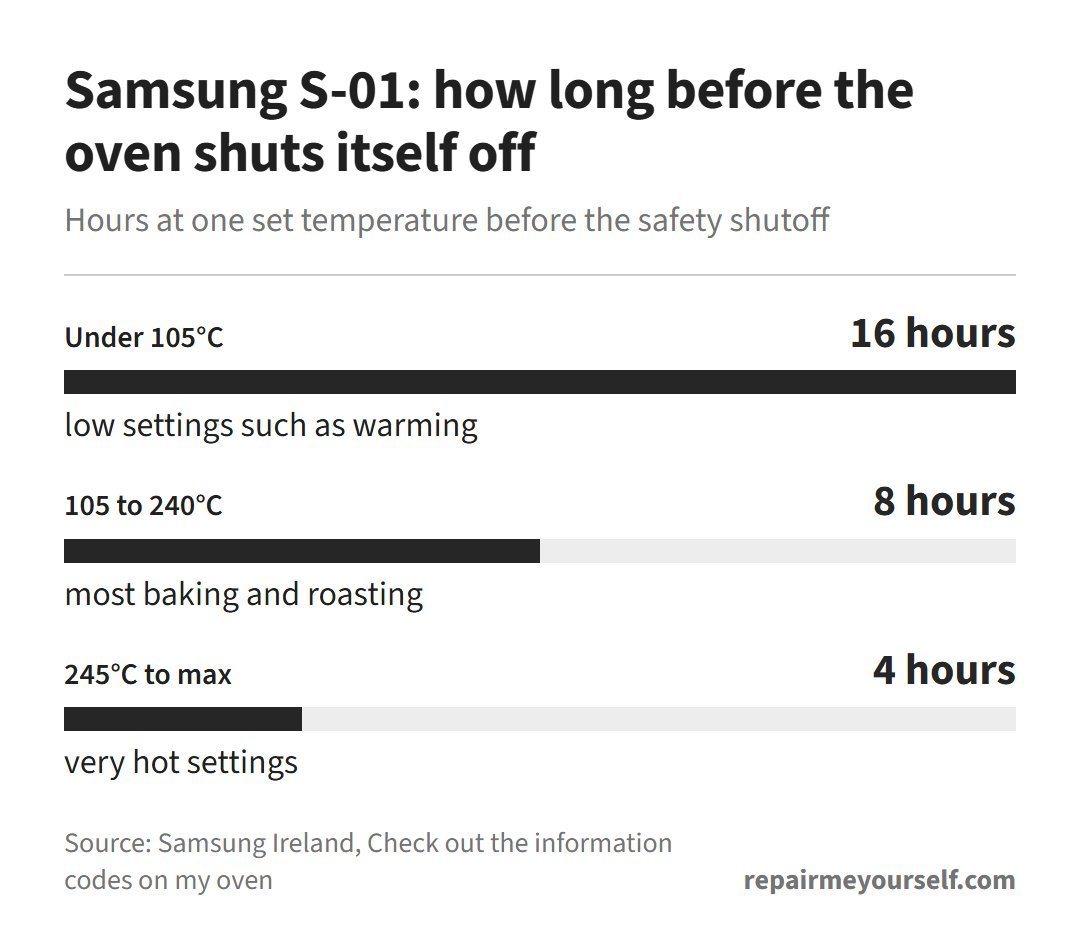
Turn the oven off, take the food out, and start again. For a long, slow cook below 105°C (221°F), you’ve got 16 hours before it trips.
C-d0 means a button was pressed and held too long. Clean the panel, dry it, and turn the oven off and on.
dC or dE is a divider check. It shows on dual-cavity ovens when the divider comes out during dual cooking, or goes in during single cooking. Fix the divider, then restart.
C-d1 points to the door lock, and C-20, C-21 or C-22 to a sensor. Turn the oven off and on first.
If the code comes back, cut the power for 30 seconds or more. If it still returns after that, call Samsung with your model number.
A panel that lights up but never heats may be in demo mode, which uses its own codes.
My Samsung oven not heating guide covers that and the parts checks. If you’re also decoding a Samsung fridge, the Samsung refrigerator symbols page lists its icons.
If you’ve got a European-style dial from another brand, the Bosch oven symbols and Neff oven symbols guides cover those.