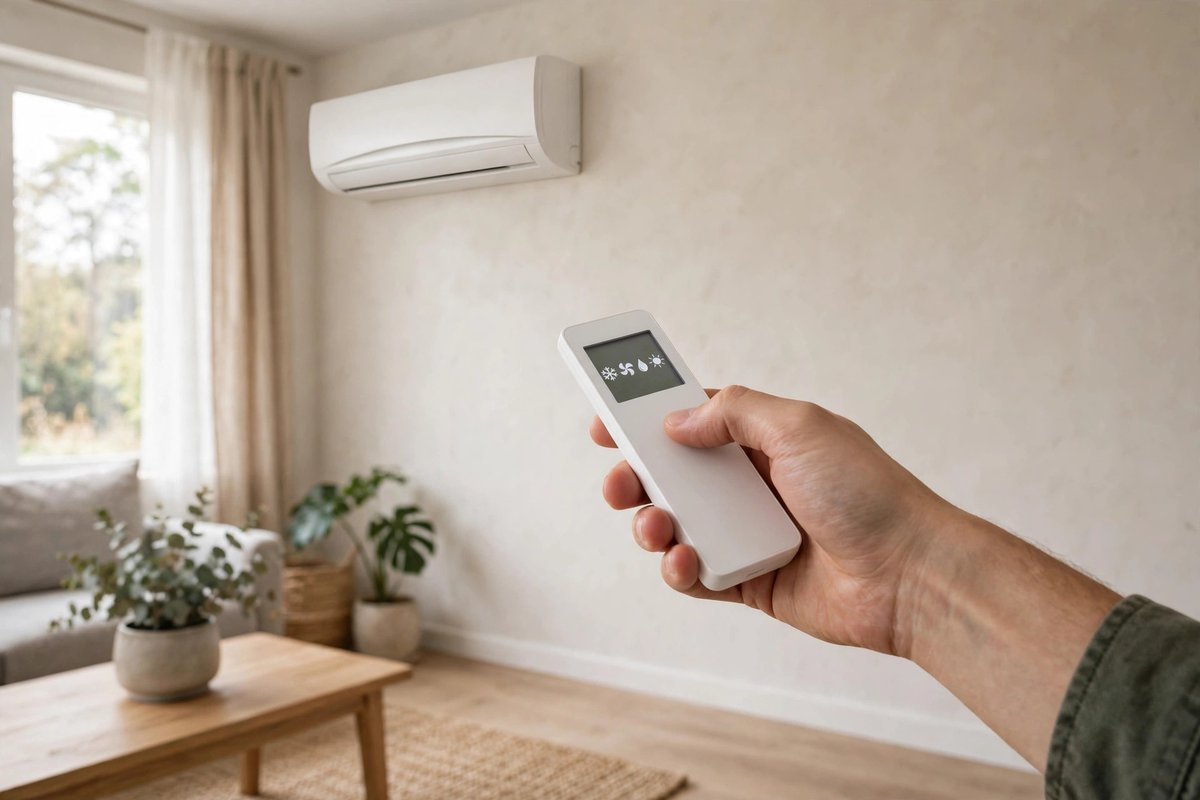
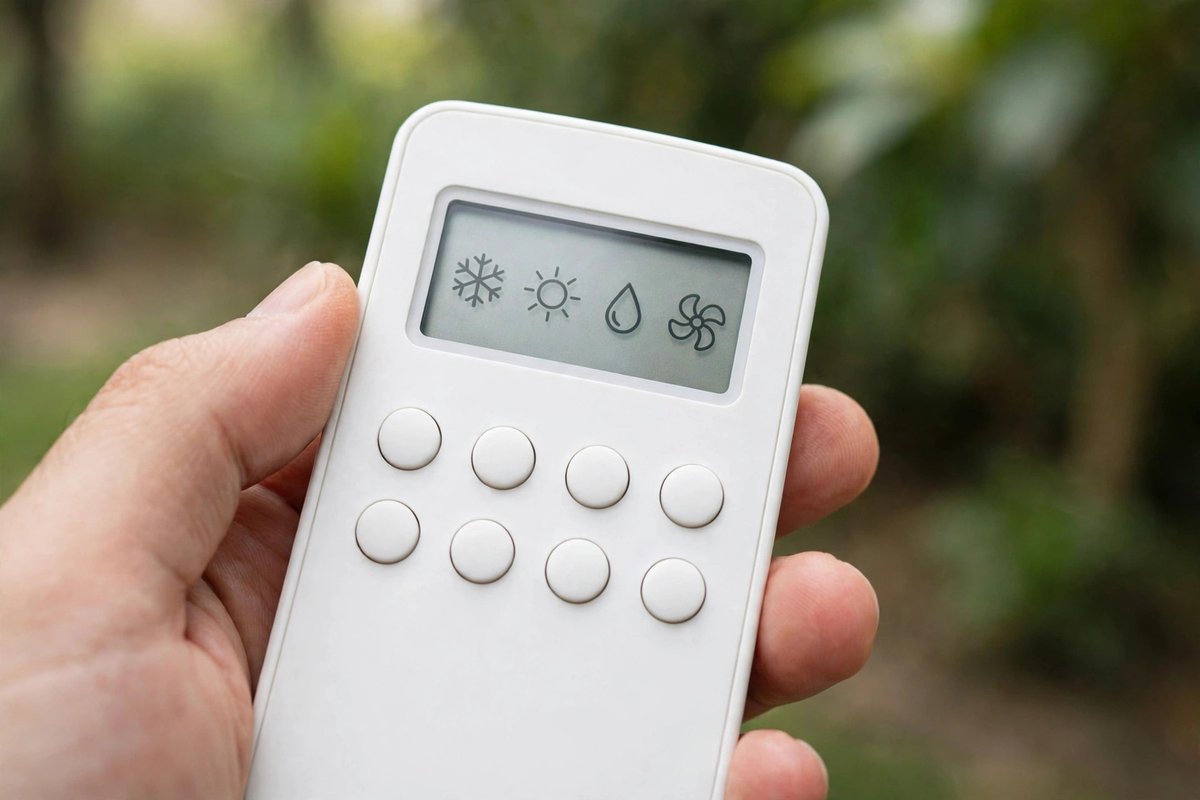
Mitsubishi remote symbols follow one pattern on most handsets. A sun means heat, and a snowflake means cool.
A water drop means dry, the fan blade is fan-only, and the looped arrow or A is auto.
That pattern holds across the GE series, which Mitsubishi Electric’s own guide covers for six models. Details change by handset, though, so your remote may not show every icon here.
Find the Mitsubishi Remote Symbols That Match Your Handset
The model number is on the back of the handset, or inside the battery cover. A wired controller carries its PAR number on the front of the body.
Find that number first, because it decides which symbols apply to you.
Mitsubishi Electric’s GE quick guide covers the MSZ-GE22VA to MSZ-GE50VA handsets. That’s six models.
- Handheld sets in the guide: MSZ-GE22VA, GE25VA, GE33VA, GE35VA, GE42VA and GE50VA
- Wired controllers in the guide: PAR-40MAA and PAR-41MAA
- Where the number sits: back of the handset or inside the battery cover
- What varies by model: fan steps, vane positions, i-See sensing, ventilation
A table built for those six can miss functions on another series. Later handsets add i-See sensing or a ventilation setting.
Two remotes can show the same five mode icons. They can still disagree on fan steps and vane positions. That’s why a table without a model column is only half a table.
Mode Symbols: Sun, Snowflake, Drop, Fan, Auto
MODE cycles a short list: cool, heat, dry, fan and auto. Mitsubishi Electric Australia’s symbol page shows each one as an icon.
The GE guide spells out what each mode does, and it’s the source for the third column below.
| Icon on the display | Mode | What the unit does | Source |
|---|---|---|---|
| Snowflake | Cool | Cools your room toward the set temperature | GE guide, AU symbol page |
| Sun | Heat | Warms your room toward the set temperature | GE guide, AU symbol page |
| Water drop | Dry | Dehumidifies, and the unit stops chasing the set temperature | GE guide, AU symbol page |
| Fan blade | Fan | Moves air without heating or cooling it | AU symbol page, GE guide |
| Looped arrow or A | Auto | Switches between heating and cooling to hold your set point | GE guide, AU symbol page |
DRY is the mode owners misread most. The GE guide says the unit “is not trying to reach the set temperature” in dry. A low number on the display isn’t a promise about your room.
Auto works differently on a handheld. The GE handset switches between heating and cooling to hold your set temperature. A wired controller can run a stricter version.
That version is called dual set point auto, where you set a cooling target and a heating target and the unit switches between them.
On a highwall M Series indoor unit, the switch happens once the room sits 1°C past either target for 15 minutes. Floor console, S Series and P Series units use a 2°C margin over the same window, per the PAR-40/41MAA Quickstart Guide, retrieved November 2026.
Going from cool to heat is one button press. Press MODE until the sun appears, and the display won’t change until the unit responds. If your icons look nothing like the table, check that model’s manual rather than guessing.
Fan Speed and Vane Icons
The fan icon opens a speed menu that cycles through AUTO, HIGH, MEDIUM, LOW and SUPER HIGH on the GE handsets.
The vane icons set where the air points, and vertical airflow steps through AUTO, positions 1 to 5, and SWING.
The two airflow icons work on different axes. One tilts the louver up and down. The other moves the vanes left and right, so pressing the wrong one sends air sideways when you wanted it higher.
The temperature arrows move your target by 1 degree per press on the GE handsets. That value stays put until you change it.
So a remote reading 22 while the room feels warmer is doing its job, not failing; you don’t need to reset anything.
Bar counts aren’t a universal scale. Three bars at medium on one series can be four bars on the next. Read the bars as a position, not a measurement.
Timer Icons and the Smaller Buttons
Timer icons appear only when a start or stop time is set, and the GE guide sets those times in 10-minute increments, so you can’t ask for 8:07.
A small clock icon confirms the handset’s own clock is running. If it’s wrong, your timer will be wrong too.
Economical Cooling sits outside the mode list. It changes the airflow to a swing pattern that creates a breeze effect, per the GE guide.
It isn’t a separate cooling mode. You can’t reach it by pressing MODE, and the guide doesn’t give it a button of its own.
Most other icons here are status lights, not settings. A filter symbol means the mesh needs cleaning. A silent symbol refers to the outdoor unit, and a lock symbol means the buttons are disabled. None of them change your temperature.
Wired Remotes: PAR-40MAA and PAR-41MAA Icons
A wired PAR-40MAA or PAR-41MAA controller can show 22 status icons on its LCD. Mitsubishi Electric’s 16-page quickstart names every one.
Several have no handheld equivalent at all.
| Icon name in the manual | What it tells you |
|---|---|
| Operation Mode | Heating, cooling, fan, dry or auto |
| Preset Temperature | The temperature your system is aiming for |
| Room Temperature | The temperature the system has detected |
| Fan Speed | The selected fan setting |
| Clock | The controller’s own time, which has to be set before a timer works |
| Timer Functions | On/Off Timer, Night Setback or Auto-Off Timer is enabled |
| Weekly Timer | A weekly schedule is running |
| Filter Maintenance | The filter needs attention |
| Button Lock | The buttons are locked |
| Energy-Saving Mode | An energy-saving operation is active |
| Silent Mode | The outdoor unit is running in silent mode |
| Thermistor Selection | Which sensor reads the room: the controller or the indoor unit |
| Vane and Louver Setting | The current vane and louver positions |
| Central Control | On/off, mode, temperature or filter reset is handled elsewhere |
Two rows matter more than the rest. Thermistor Selection explains why your wall panel can report a room temperature that disagrees with the handheld display.
The reading follows whichever sensor is active. That’s set in the controller’s own menu, not on the handheld.
Check Central Control before you assume a fault, because that’s where the setting actually lives. If another controller has taken over on/off or the set temperature, your wall panel’s buttons stop changing it.
The icon is the only warning you get.
The ON/OFF lamp glows green while the system runs. It blinks when there’s an error, and that’s the first thing to check before you read the icons.
A blinking pattern is a code rather than a symbol. A blinking green light on a Mitsubishi split has its own set of meanings, and you’ll want to count the flashes before you touch anything.
Owners often assume the handheld remote is the room thermostat. Usually it isn’t. One poster on r/heatpumps answered a thread about exactly that:
“The room temperature sense location is taken from the indoor unit”
– r/heatpumps, September 2026 (28 upvotes)
The thread ran to several replies. The split is useful: some units can sense at the remote, but as a secondary input rather than your main thermostat.
When the Remote Isn’t the Problem
If the display is alive but the unit ignores it, your remote is probably fine, and a new one won’t fix the unit. Check reception, batteries and the indoor unit’s own fault display before you buy a replacement handset.
- Watch the indoor unit as you press ON/OFF. A beep or a moving vane means the signal arrived.
- Fit fresh batteries and look at the old ones for leakage; if they’re crusty, you’ve found your fault.
- Check the indoor unit’s lamp, because it’s the fastest diagnostic you have. A flashing sequence means the unit is reporting a fault, not that your handset failed to send.
- If nothing responds, work through the remote not responding checklist before you replace anything.
Leaking cells do more damage than flat ones. A regular on r/AirConditioners names the cause outright:
“Most of the time when I see broken remotes, it is because of leaky batteries. It’s why I always recommend disposable lithium batteries.”
– r/AirConditioners
Replacing the handset is the last step, not the first. Two green lights or a repeating flash on the indoor unit points to the system, and the two green lights pattern covers that case. For faults beyond the panel, start at the unit with the mini split troubleshooting walkthrough.
Mitsubishi Remote Symbols: Quick Answers
Do all Mitsubishi remotes use the same symbols?
No. The five mode icons are shared across most handheld remotes, but fan steps and vane positions differ by series. Wired PAR controllers use a text-and-icon screen instead, so they’re not interchangeable. Match the model number on your handset before you trust any table.
What does the A symbol mean on a Mitsubishi remote?
A stands for auto. A looped arrow does the same job on handsets that show the arrow instead of the letter.
In auto, the unit picks heating or cooling to hold your set temperature. On a wired controller with dual set point, it switches at the 1°C or 2°C margin described above.
Is dry mode the same as cool mode?
No. Cool runs toward the set temperature, and dry removes humidity instead.
In the GE guide’s wording, dry is “not trying to reach the set temperature”. Expect the display to behave differently, and don’t read a low number as a cooling promise.
Why does my remote show an icon that isn’t in the manual?
Usually because the manual belongs to a different series or region. The GE quick guide covers six models only.
Later handsets add functions such as i-See sensing. Find the model number on the back of your remote or inside the battery cover, then use that model’s guide.
If your indoor unit’s lamp is blinking, count the flashes before you press anything else.