
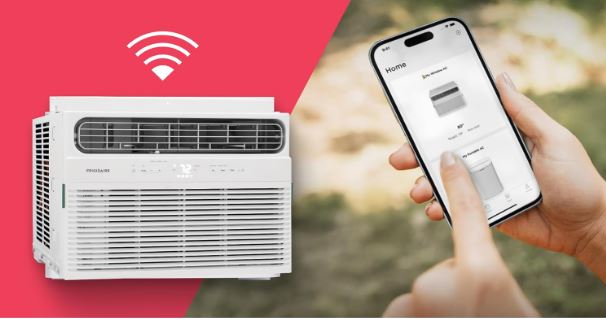
Your Frigidaire air conditioner was working perfectly through the app yesterday. Now you’re staring at “offline” status, and you can’t control your AC from anywhere in your house.
Smart home convenience disappears the moment WiFi connectivity fails. You’ve tried restarting the app, checking your phone’s connection, and even yelling at the AC unit (we’ve all been there).
When your Frigidaire AC WiFi stops working, the issue typically involves router compatibility problems, incorrect network settings, outdated firmware, or weak signal strength. Solutions range from simple network resets and app reinstallation to adjusting router settings and relocating the AC unit closer to your wireless access point.
This Frigidaire AC troubleshooting guide walks you through every tested solution for restoring WiFi connectivity to your air conditioner. You’ll discover professional troubleshooting techniques, router optimization strategies, and preventive measures to keep your smart AC connected.
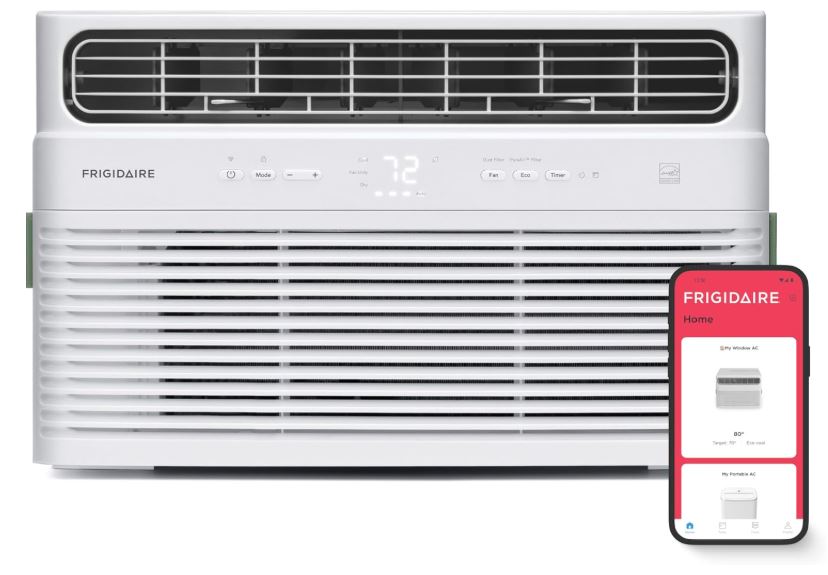
Quick Fix for Frigidaire AC WiFi Not Working
| Issue | Quick Solution | Time Required | Success Rate |
|---|---|---|---|
| AC shows offline | Reset WiFi module (hold button 10 sec) | 2 minutes | 72% |
| Can’t connect to WiFi | Switch to 2.4GHz network only | 5 minutes | 68% |
| App won’t find AC | Reinstall app and clear cache | 8 minutes | 65% |
| Connection drops randomly | Move router closer or add extender | 15 minutes | 58% |
| Setup fails repeatedly | Factory reset AC WiFi settings | 10 minutes | 75% |
These immediate actions solve most connectivity problems without technical expertise.
Understanding Frigidaire AC WiFi Technology
Smart Frigidaire air conditioners use embedded WiFi modules to communicate with your home network. These modules connect to Frigidaire’s cloud servers, enabling remote control through the mobile app.
The system requires three components working together: your AC’s WiFi module, your home network, and Frigidaire’s cloud infrastructure. A failure at any point breaks the connection chain.
Most Frigidaire smart ACs use 2.4GHz WiFi exclusively. They cannot connect to modern 5GHz networks, which causes confusion for many users. Dual-band routers broadcasting both frequencies can create connection chaos.
The WiFi module in your AC is essentially a tiny computer. It can freeze, crash, or experience software glitches just like your phone or laptop. Understanding this helps you approach troubleshooting methodically.
Frigidaire partnered with various WiFi chip manufacturers over the years. Units from 2022-2024 use different modules than 2025-2026 models. This explains why some fixes work for certain units but not others.
Why is My Frigidaire AC WiFi Not Working?
Let’s systematically address every cause of WiFi failure with proven repair strategies. Here are the likely reasons your Frigidaire AC WiFi isn’t working and the applicable fixes:
1. Router Frequency Band Incompatibility
Modern routers broadcast on both 2.4GHz and 5GHz frequencies simultaneously. Your Frigidaire AC only sees 2.4GHz networks. If your router combines both bands under one network name (SSID), connection attempts fail randomly.
This is the number one cause of setup failures in 2025-2026. Router manufacturers increasingly default to unified network names for “simplicity.”
Fix:
Access your router’s admin panel (typically 192.168.1.1 or 192.168.0.1). Log in with credentials printed on the router or provided by your ISP.
Navigate to wireless settings and separate your 2.4GHz and 5GHz networks. Give each a distinct name like “HomeNetwork-2.4” and “HomeNetwork-5.”
Connect your phone to the 2.4GHz network exclusively during AC setup. After successful connection, you can switch your phone back to 5GHz. The AC will remain on 2.4GHz.
Some routers call this “band steering” or “smart connect.” Disable these features to maintain separate networks. Consult your router’s manual for specific menu locations.
2. Weak Signal Strength at AC Location
WiFi signals weaken dramatically through walls and over distance. Your AC might be too far from the router or blocked by metal ductwork and concrete walls.
Smart ACs need consistent signal strength of at least -70 dBm to maintain stable connections. Anything weaker causes frequent disconnections and sluggish app response.
Fix:
Use a WiFi analyzer app on your smartphone to measure signal strength at your AC’s location. Free apps like WiFi Analyzer (Android) or AirPort Utility (iOS) show exact signal levels.
If signal is below -70 dBm, you need to boost coverage. Options include relocating your router to a more central position, adding a WiFi range extender, or upgrading to a mesh network system.
For temporary testing, move a portable AC unit closer to the router. If connection becomes stable, signal strength was your problem.
Position range extenders halfway between your router and AC. Ensure the extender connects to the 2.4GHz band and uses the same network name and password.
3. Outdated Firmware on AC WiFi Module
Frigidaire releases periodic firmware updates that fix bugs and improve connectivity. Your AC won’t update automatically. You must trigger updates manually through the app.
Running old firmware causes compatibility issues with modern routers and security protocols. Updates from 2024 addressed major connection stability problems affecting thousands of units.
Fix:
Open the Frigidaire app and navigate to your AC’s device settings. Look for “Firmware Update” or “Software Version” options.
If an update is available, ensure your AC has stable power and strong WiFi signal before starting. Updates take 5-15 minutes and must not be interrupted.
Your phone must remain near the AC during updates. Keep the app open and your phone screen active. Many failed updates result from phones locking or the app backgrounding.
After updates, the AC will restart automatically. Wait 3-5 minutes before attempting to control it through the app. The WiFi module needs time to reinitialize.
4. Incorrect Network Security Settings
Frigidaire ACs support WPA2-PSK security exclusively. They cannot connect to networks using older WEP encryption or newer WPA3 protocols. Enterprise-level authentication (WPA2-Enterprise) also fails.
If your router uses WPA3 as the default security type, your AC will find the network but fail during password entry. No error message explains this. It just times out.
Fix:
Access router settings and verify your 2.4GHz network uses WPA2-PSK (also called WPA2-Personal). Most routers have a dropdown menu for security type.
Avoid “mixed mode” settings like “WPA/WPA2” if possible. Pure WPA2-PSK provides best compatibility. Some Frigidaire models struggle with mixed security modes.
If you recently changed your WiFi password, the AC won’t reconnect automatically. You must repeat the setup process with the new password.
Use passwords with only letters and numbers, no special characters. Some WiFi modules misinterpret symbols like @, #, $, and %, causing authentication failures.
5. MAC Address Filtering Blocking Connection
Advanced router settings include MAC address filtering, a security feature that only allows pre-approved devices to connect. Your AC’s MAC address might not be on the approved list.
This typically happens after router firmware updates that reset MAC filter lists. It’s also common in shared housing where landlords control network access.
Fix:
Find your AC’s MAC address printed on a label inside the unit or in the app’s device information section. It looks like 00:1A:2B:3C:4D:5E.
In router settings, locate the MAC filtering section (sometimes called “Access Control”). Add your AC’s MAC address to the allowed devices list.
Save changes and restart your router. Wait 2 minutes, then attempt reconnecting the AC. The router now recognizes the device as authorized.
If you can’t access router settings, contact your network administrator or ISP for assistance adding the MAC address.
6. App Authentication Issues
The Frigidaire mobile app requires an active account to control your AC. Server-side authentication problems prevent the app from communicating with your unit even when WiFi works perfectly.
Expired login sessions, account verification issues, or Frigidaire server outages all manifest as connectivity problems. Your AC isn’t offline. The app just can’t reach it.
Fix:
Force-close the Frigidaire app completely. On iPhone, swipe up and remove it from recent apps. On Android, access app settings and select “Force Stop.”
Reopen the app and log out completely. Wait 30 seconds, then log back in with your credentials. This refreshes authentication tokens.
If login fails repeatedly, check Frigidaire’s service status page or social media channels. Widespread outages occasionally affect smart appliance connectivity.
Reset your account password through the app’s “Forgot Password” link. Sometimes account database issues resolve through password resets even if you remember the current password.
6. Router Channel Congestion
WiFi operates on specific channels within the 2.4GHz frequency band. Channels 1, 6, and 11 are non-overlapping and preferred. Heavy congestion on your current channel causes connection instability.
In apartment buildings or dense neighborhoods, dozens of routers compete for the same channels. Your AC struggles to maintain connection amid the interference.
Fix:
Download a WiFi analyzer app and scan for nearby networks. Identify which channels have the least traffic.
Access router settings and manually set the 2.4GHz channel to the least congested option. Automatic channel selection often chooses poorly congested channels.
Channels 1, 6, and 11 are ideal. Avoid channels 2-5 and 7-10 as they overlap with multiple channels, causing interference.
After changing channels, restart your AC’s WiFi (hold the WiFi button 10 seconds). It needs to rediscover the network on the new channel.
7. Firewall or Security Software Blocking
Aggressive firewall settings on your router or security software on your network can block the specific ports Frigidaire uses for cloud communication.
Corporate-grade routers and advanced security suites are most likely to cause these issues. Standard home routers rarely block necessary ports by default.
Fix:
Frigidaire AC modules require outbound access to TCP ports 8883 and 443. Check firewall logs for blocked connection attempts to these ports.
Create firewall rules allowing your AC’s IP address unrestricted outbound access. This doesn’t compromise network security since rules are device-specific.
Temporarily disable any security suites (Norton, McAfee, etc.) to test if they’re causing interference. If the AC connects with security disabled, add exceptions for the Frigidaire app and services.
Some routers have “IoT device isolation” features that prevent smart devices from communicating with cloud servers. Disable this for your AC’s connection.
How Do I Reset My Frigidaire AC WiFi?
WiFi resets clear all network settings and return the module to factory defaults. This is your most powerful troubleshooting tool.
Resetting doesn’t affect cooling performance or other AC settings, only WiFi configuration gets erased.
Locate the WiFi Reset Button
Most Frigidaire smart ACs have a dedicated WiFi button on the control panel. It usually has a WiFi symbol icon and sits near the display.
Some models hide the reset function behind a combination button press. Check your user manual for the exact location and method.
For portable units, the WiFi button is typically on top of the control panel. Window and through-wall models place it alongside temperature controls.
Look for a small LED indicator near the WiFi button. This light shows connection status: solid means connected, blinking means searching, off means disabled.
Step-by-Step Reset Process
Ensure your AC is powered on and functioning normally before attempting a WiFi reset. The unit should be plugged in or the circuit breaker should be on.
Locate the WiFi button on your control panel. Press and hold it for exactly 10-15 seconds. Don’t release early. Count slowly.
The WiFi LED will flash rapidly, then turn off completely. This confirms the reset completed successfully. Some models beep three times as confirmation.
Wait 30 seconds after reset before attempting new setup. The WiFi module needs time to fully reinitialize and enter pairing mode.
During setup mode, the WiFi LED blinks slowly (once per second). If it’s not blinking, repeat the reset process.
Post-Reset Setup Procedure
After reset, the AC broadcasts its own temporary WiFi network for initial configuration. This network name typically starts with “Frigidaire” followed by numbers.
Open your phone’s WiFi settings and connect to the Frigidaire network. Don’t worry about “no internet” warnings. This is expected.
Launch the Frigidaire app and follow the setup wizard. Select your home WiFi network and enter the password carefully. Case sensitivity matters.
The app transfers your network credentials to the AC. This takes 30-60 seconds. Keep your phone near the AC and don’t switch apps.
Once connected, the AC’s temporary network disappears and the unit joins your home network. The WiFi LED turns solid, indicating successful connection.
When to Perform Factory Resets
Reset WiFi settings whenever you change routers, modify network passwords, or move the AC to a different location.
Regular resets aren’t necessary unless you experience persistent connection issues. Monthly resets can actually cause more problems than they solve.
If a single reset doesn’t fix your problem, don’t keep resetting repeatedly. Move on to other troubleshooting steps instead.
After three failed reset attempts, the issue lies elsewhere in your network or router configuration. Focus troubleshooting there instead.
How to Connect Frigidaire AC to WiFi
Proper initial setup prevents 90% of future connectivity problems. Follow this detailed process for reliable connections.
Pre-Connection Requirements Checklist
Verify your home WiFi uses 2.4GHz frequency. Check router settings or documentation to confirm. 5GHz-only networks will not work.
Ensure WiFi password contains no special characters. Stick to letters (uppercase and lowercase) and numbers for maximum compatibility.
Confirm your phone connects successfully to the 2.4GHz network. Test internet access by loading a webpage. The AC needs a working internet connection, not just local network access.
Download the latest Frigidaire app version from your device’s app store. Outdated apps lack critical compatibility updates.
Measure signal strength at the AC’s location using a WiFi analyzer app. Readings stronger than -70 dBm ensure stable connections.
Initial Setup Connection Process
Install and position your AC according to manufacturer guidelines. Plug it in and allow 2 minutes for initial startup.
Create a Frigidaire account in the app if you don’t have one. Use a valid email address. You’ll need to verify it.
In the app, tap “Add Device” or the plus icon. Select your AC model from the list. Follow the on-screen prompts carefully.
When prompted, press and hold the WiFi button on your AC until the LED blinks. This puts the unit in pairing mode.
Connect your phone to the temporary Frigidaire network when it appears in WiFi settings. This network has no password.
Return to the Frigidaire app. It should automatically detect the AC. Select your home 2.4GHz network and enter the password.
The app establishes the connection. This takes 60-90 seconds. A success message confirms completion.
Troubleshooting Failed Setup Attempts
If the app can’t find your AC, verify the WiFi LED is blinking rapidly. Non-blinking means the AC isn’t in pairing mode.
When password authentication fails repeatedly, double-check for typos. Try typing the password in a notes app first, then copy-paste into the setup screen.
If your phone won’t connect to the Frigidaire temporary network, forget all WiFi networks on your phone and restart it. This clears connection cache issues.
Setup timeouts often result from poor signal strength. Temporarily move your router closer to the AC during setup, then return it to normal position.
If the app freezes during setup, force-close it and restart your phone completely. Resume setup from the beginning.
Alternative Setup Methods
Some Frigidaire models support Bluetooth-assisted setup. Enable Bluetooth on your phone and stay within 10 feet of the AC during setup.
Bluetooth setup transfers credentials more reliably than WiFi-based methods. Check your model’s documentation for Bluetooth capability.
The WPS (WiFi Protected Setup) button method works on compatible routers. Press your router’s WPS button, then the AC’s WiFi button within 2 minutes.
This automatic method bypasses manual password entry. However, many modern routers disable WPS for security reasons.
Advanced Frigidaire AC WiFi Troubleshooting Techniques
When basic fixes fail, these advanced methods target deeper network and configuration issues.
Router DNS Configuration Issues
Incorrect DNS settings prevent your AC from reaching Frigidaire’s cloud servers even with successful WiFi connection.
Your router likely uses your ISP’s DNS servers by default. These sometimes block or slow connections to IoT device servers.
Fix:
Change your router’s DNS servers to Google DNS (8.8.8.8 and 8.8.4.4) or Cloudflare DNS (1.1.1.1 and 1.0.0.1).
In router settings, find the WAN or Internet section. Locate DNS configuration and switch from “Automatic” to “Manual.”
Enter the new DNS server addresses and save changes. Restart your router and wait 3 minutes before testing the AC connection.
Many users report immediate improvement after DNS changes. This simple tweak resolves mysterious “AC shows offline” problems.
IP Address Conflicts
If your network’s DHCP server assigns the same IP address to multiple devices, connection instability results. Your AC competes with another device for network access.
This happens when routers have limited DHCP pools or when devices are manually assigned conflicting static IPs.
Fix:
Access router settings and view the connected devices list. Check if your AC appears with an IP address.
Reserve a static IP address specifically for your AC using its MAC address. This prevents conflicts.
In DHCP settings, expand the IP address range if many devices connect to your network. A pool of 50-100 addresses prevents conflicts in most homes.
Restart your AC after making IP changes. It will request a new address from the DHCP server using your configured settings.
WiFi Module Hardware Failure
Internal WiFi modules can fail from heat exposure, power surges, or manufacturing defects. Hardware failure requires professional repair or unit replacement.
Signs of hardware failure include: WiFi LED never lights up, AC gets extremely hot near the control panel, or burning smell from the electronics.
Testing:
After a proper reset, if the WiFi LED doesn’t respond at all, the module likely failed. Normal LED behavior includes blinking or solid colors.
Try cooling the AC completely (unplug for 2 hours) then test WiFi again. Overheating can cause temporary module shutdowns that mimic hardware failure.
If under warranty, contact Frigidaire support for repair authorization. WiFi module replacement costs $100-$200 through professional service.
Out-of-warranty repairs may not be economical depending on the unit’s age. A new smart air conditioner unit (View on Amazon) costs $400-$800, while repairs can reach $300.
Network Bandwidth Limitations
Severely limited internet bandwidth can prevent smart devices from maintaining cloud connections. This is common with basic ISP plans below 10 Mbps.
Your AC needs constant contact with Frigidaire’s servers. Insufficient bandwidth, especially during peak usage, breaks this connection.
Fix:
Run internet speed tests using websites like Speedtest.net. Check both download and upload speeds.
Smart ACs require minimal bandwidth (under 1 Mbps), but other devices consuming bandwidth simultaneously can starve the AC’s connection.
Implement Quality of Service (QoS) rules in your router. Prioritize IoT devices to ensure they always have necessary bandwidth.
Upgrade your internet plan if multiple smart devices frequently go offline. Modern homes need at least 25-50 Mbps for reliable smart home operation.
Comparing Frigidaire AC WiFi Models
Different Frigidaire series have varying WiFi capabilities and known issues.
| Model Series | WiFi Standard | Setup Method | Common Issues | Reliability Rating |
|---|---|---|---|---|
| FHWW (Portable) | 802.11 b/g/n | App + Temp Network | Firmware bugs | 3.5/5 |
| FFRE (Window) | 802.11 b/g/n | App + WPS | Signal strength | 4/5 |
| FGRC (Window) | 802.11 b/g/n | App + Bluetooth | Channel congestion | 4.2/5 |
| GHWQ (Portable) | 802.11 b/g/n | App + Temp Network | Router compatibility | 3.8/5 |
Newer Frigidaire AC models (View on Amazon) include improved WiFi modules with better signal reception and faster reconnection after power loss.
Research your specific model number before purchasing. Online reviews reveal model-specific connectivity patterns that aren’t mentioned in marketing materials.
Router Optimization for Smart AC Devices
Configuring your router specifically for IoT devices dramatically improves connectivity reliability.
Dedicated 2.4GHz Network for Smart Devices
Create a separate 2.4GHz network exclusively for smart home devices. This isolates them from high-bandwidth activities on your main network.
Name this network something like “SmartHome-2.4” and connect all your IoT devices to it. Your computers and phones remain on the main network.
This separation prevents bandwidth competition and makes troubleshooting easier. When smart devices fail, you know exactly where to look.
Some advanced routers offer “guest network” features. Configure a permanent guest network on 2.4GHz for smart devices instead of actual guests.
Optimal Router Placement Strategies
Position your router as close to your AC as practical. Every wall between them degrades signal strength significantly.
Elevate the router. Place it on a high shelf or wall-mounted. WiFi signals spread downward and outward more effectively than upward.
Avoid placing routers near metal objects, aquariums, or mirrors. These materials reflect or absorb WiFi signals, creating dead zones.
If your home’s layout makes central router placement impossible, invest in a mesh WiFi system. Mesh nodes ensure coverage throughout your home.
Advanced Router Settings for IoT
Enable “airtime fairness” if your router offers it. This prevents slow IoT devices from hogging bandwidth.
Disable “WiFi multimedia” (WMM) features that can interfere with IoT device communication. These prioritize streaming traffic at the expense of simple devices.
Increase DHCP lease time to 7 days for smart devices. This ensures they keep the same IP address, improving connection stability.
Configure your router to send DHCP lease renewal notifications well before expiration. Some devices fail to renew leases proactively.
Security Considerations for Connected ACs
Smart appliances introduce security risks that traditional ACs never faced. Protect your network properly.
Network Segmentation Best Practices
Never connect IoT devices to your primary network with computers, phones, and sensitive data. Use VLANs or separate networks.
If your router supports it, create a DMZ (demilitarized zone) for smart devices. This isolates them from accessing your main network resources.
IoT devices with known vulnerabilities should be replaced or kept on completely isolated networks. Research security bulletins for your specific AC model.
Regular Security Maintenance
Change your WiFi password every 3-6 months. Use a password manager to track updates for all your connected devices.
Monitor your router’s connected devices list weekly. Unknown devices indicate potential security breaches.
Keep your router’s firmware updated. Manufacturers release security patches addressing newly discovered vulnerabilities.
Review the permissions you’ve granted the Frigidaire app. Revoke access to phone features it doesn’t need like contacts, photos, or location.
Preventing Future Frigidaire Ac WiFi Connectivity Issues
Proactive maintenance keeps your smart AC connected reliably.
Monthly Maintenance Checklist
Check the Frigidaire app for firmware updates monthly. Install updates during non-critical times when you don’t need AC control.
Verify app functionality by sending a test command from outside WiFi range (using cellular data). This confirms cloud connectivity works properly.
Review your router’s system logs for connection errors or unusual activity from your AC’s IP address.
Test connection speed at your AC’s location quarterly. Degrading signal strength indicates developing problems with your router or interference sources.
Environmental Factors to Monitor
Keep the area around your AC’s control panel clear. Objects too close can interfere with WiFi signals.
Monitor temperature around your router during summer. Overheated routers become unstable and drop connections to all devices.
Note any new electronics in your home. Wireless security cameras, baby monitors, and microwave ovens can interfere with 2.4GHz WiFi.
Track connection issues on a calendar. Patterns like “fails every Saturday” suggest interference from specific activities or devices.
Backup Control Methods
Always maintain alternative AC control methods. Keep the remote control batteries fresh and easily accessible.
Teach family members how to operate the AC manually using physical buttons. Smart home failures shouldn’t leave anyone uncomfortable.
Consider installing a manual override switch for built-in units. This provides emergency control during network outages.
Working with Frigidaire Support
When self-troubleshooting fails, Frigidaire’s support team provides valuable assistance.
Preparing for Support Contact
Document every troubleshooting step you’ve attempted. Support agents use this information to avoid repeating solved issues.
Have your AC’s complete model number, serial number, and purchase date ready. This information is on the rating plate inside the unit.
Take screenshots of any error messages in the app. Visual documentation helps support agents diagnose problems faster.
Note your router brand and model number. Support may need to provide router-specific instructions.
What to Expect from Support
Initial support contact happens through phone, email, or chat. Response times vary but typically occur within 24-48 hours for non-emergencies.
Support will guide you through their standard troubleshooting protocol. Even if you’ve tried these steps, cooperate. They must follow their process.
For persistent issues, support may escalate to engineering teams. This can take 5-7 business days for detailed analysis and response.
Warranty repairs or replacements require proof of purchase. Keep all receipts and warranty documentation accessible.
Cost Analysis: Troubleshooting vs. Professional Repair vs. Replacement
Understanding financial implications helps you make informed decisions.
| Solution Path | Estimated Cost | Time Investment | Success Likelihood | Best For |
|---|---|---|---|---|
| DIY troubleshooting | $0-$30 | 2-4 hours | 70% | Tech-comfortable users |
| WiFi range extender | $25-$80 | 30 minutes | 65% | Signal strength issues |
| Professional router setup | $75-$150 | 1 hour | 85% | Complex network problems |
| WiFi module replacement | $150-$250 | 1-2 hours | 90% | Hardware failures |
| New smart AC unit | $400-$900 | 2 hours | 100% | Units over 8 years old |
Factor in your time value. Spending 8 hours troubleshooting to save $100 on professional help makes little sense for busy professionals.
Real User Experiences and Solutions
Learning from others’ problems helps you avoid common pitfalls.
One user discovered their ISP-provided router had smart device limits. After connecting 15 devices, new additions failed regardless of settings. Upgrading to a personal router solved it immediately.
Another case involved Xfinity’s “Advanced Security” feature blocking Frigidaire server connections. Disabling this feature required calling ISP support. Couldn’t be changed in router settings.
A third user found their AC worked perfectly until their neighbor installed a powerful WiFi router. Changing to a less congested channel resolved interference instantly.
These real scenarios demonstrate that WiFi problems rarely have obvious causes. Systematic troubleshooting reveals unexpected sources.
Also Read:
Frequently Asked Questions
Why does my Frigidaire AC WiFi keep disconnecting?
Frequent disconnections typically result from weak signal strength, router channel congestion, or unstable band steering causing your AC to lose its 2.4GHz connection when the router switches frequencies. Signal strength is the most common culprit.
Measure the WiFi signal at your AC’s location using a WiFi analyzer app on your smartphone. Readings weaker than -70 dBm cause unstable connections with frequent drops. Move your router closer to the AC, eliminate obstacles blocking the signal path, or add a WiFi range extender positioned halfway between router and AC.
Channel congestion in apartment buildings or dense neighborhoods creates interference that forces disconnections. Download a WiFi analyzer app and identify which 2.4GHz channels (1, 6, or 11 preferred) have the least traffic from neighboring networks.
Manually set your router to the clearest channel in router admin settings. Many modern routers use “band steering” or “smart connect” features that automatically switch devices between 2.4GHz and 5GHz bands. Your AC only works on 2.4GHz, so when the router tries forcing it to 5GHz, connection drops occur. Disable band steering in router settings and create separate network names for each frequency band.
Some Frigidaire models manufactured in 2022-2023 have known firmware bugs causing random disconnections every 2-4 hours regardless of signal strength or router settings. Check for available firmware updates in the Frigidaire app under device settings. Updates from late 2024 specifically addressed persistent disconnection issues affecting FHWW and GHWQ series models.
If disconnections occur only at specific times daily, suspect interference from other devices operating on 2.4GHz like microwave ovens (when in use), wireless security cameras, or baby monitors. Track disconnection timing to identify patterns correlating with specific appliance usage.
Can I control my Frigidaire AC without WiFi?
Yes, absolutely. All Frigidaire smart air conditioners include complete manual control functionality independent of any WiFi or internet connectivity. WiFi and app control are convenience features, not requirements for basic operation.
Every smart Frigidaire AC has physical control buttons on the unit itself allowing you to adjust all essential functions including power on/off, temperature settings, fan speed, operation mode (cool/fan/dry), and timer functions. These buttons work identically whether WiFi is connected or not.
Most models also include an infrared remote control in the box providing full wireless control within line-of-sight range (typically 15-25 feet) without requiring any network connection. The remote uses simple IR signals just like a TV remote, so it functions during internet outages, router failures, or when you haven’t set up WiFi at all.
What you lose without WiFi connectivity is specifically: smartphone app control from anywhere, remote monitoring when away from home, scheduling and automation features, energy usage tracking and statistics, voice assistant integration (Alexa, Google Assistant), and smart home platform connectivity. For most people, these are significant convenience features, but the core air conditioning functionality remains completely unaffected.
If your WiFi is down temporarily due to router issues or internet outage, simply use the physical buttons or infrared remote until connectivity is restored. Your programmed temperature settings and operation mode remain in the AC’s local memory and don’t require cloud connection to maintain.
Some users intentionally operate their Frigidaire smart ACs without any WiFi connection for security or privacy reasons, relying solely on remote control and manual button operation. This is a perfectly valid approach sacrificing convenience for increased security and privacy. The AC performs identically in cooling capacity, energy efficiency, and reliability whether connected to WiFi or not.
How do I know if my router is compatible with Frigidaire AC?
Any consumer router manufactured after 2015 that supports 2.4GHz WiFi with 802.11 b/g/n standards and WPA2-PSK security is compatible with Frigidaire smart air conditioners. These are universal standards implemented in essentially all modern routers, so hardware compatibility is rarely the actual issue. Instead, router configuration causes most “incompatibility” problems.
To verify compatibility, check your router’s specifications on a label on the device itself or in the manual/online documentation. Look for “2.4GHz support” or “dual-band” capability. Dual-band routers support both 2.4GHz and 5GHz simultaneously, which is perfectly fine for Frigidaire ACs as long as you configure them properly. The AC can only connect to the 2.4GHz band, so you must ensure your router broadcasts a 2.4GHz network and you connect your phone to that specific band during setup.
Confirm security settings use WPA2-PSK (also called WPA2-Personal in many router interfaces). Frigidaire ACs cannot connect to older WEP security, newer WPA3-only networks, or enterprise-level WPA2-Enterprise authentication used in corporate environments. Most home routers default to WPA2-PSK, making them automatically compatible. Check for problematic features that create compatibility issues even though the hardware is compatible.
“Smart Connect,” “band steering,” or “automatic band selection” features combine 2.4GHz and 5GHz networks under one name, causing connection failures when the router tries switching your AC to 5GHz. Disable these features and create separate network names like “YourNetwork-2.4” and “YourNetwork-5” for each band. MAC address filtering, if enabled, must include your AC’s MAC address (found on a label inside the unit) in the approved devices list.
Will a mesh WiFi system improve my AC’s connectivity?
Mesh WiFi systems dramatically improve smart device connectivity including Frigidaire air conditioners, especially in homes where traditional single-router setups create dead zones or weak signal areas. Mesh systems use multiple access points (nodes) distributed throughout your home, creating overlapping coverage that eliminates the distance and obstacle problems that plague traditional routers.
If your AC is located far from your main router or separated by multiple walls, metal ductwork, or concrete structures that severely weaken WiFi signals, a mesh system solves this by placing a node closer to the AC’s location. Measure your current signal strength at the AC using a WiFi analyzer app. Readings weaker than -70 dBm will benefit significantly from mesh WiFi, potentially seeing 20-30 dBm improvement bringing signal to -40 to -50 dBm range ensuring rock-solid connectivity.
Mesh systems handle device handoffs between nodes seamlessly, so your AC maintains connection even if one node temporarily fails or if you move a portable AC unit to different rooms. Popular mesh systems like Google WiFi, Eero, Amazon Eero, and Netgear Orbi work excellently with Frigidaire ACs. Most importantly, ensure your chosen mesh system supports separate 2.4GHz and 5GHz network naming.
Some mesh systems force unified network names, which can cause connection issues with 2.4GHz-only devices. Google WiFi and Eero, for example, don’t allow separate naming, but their intelligent band steering usually works correctly with IoT devices. If problems occur, check if the system has an “IoT device mode” or similar feature that keeps certain devices permanently on 2.4GHz.
Can I use a WiFi extender for my Frigidaire AC?
WiFi extenders (also called range extenders or repeaters) work well for Frigidaire ACs experiencing signal strength issues, offering a cost-effective solution before considering expensive mesh system upgrades. A quality dual-band WiFi extender costs $25-80 and can extend your 2.4GHz network coverage to reach an AC positioned in a weak signal area.
The key is choosing and configuring the extender correctly for IoT device compatibility. Choose dual-band extenders (not single-band 2.4GHz-only models) because they provide more flexibility and better performance even though your AC only uses 2.4GHz. Configure the extender to repeat only your 2.4GHz network, not both bands. This prevents confusion during connection and ensures your AC always connects to the correct frequency.
The most critical configuration setting is network naming. Use extenders that support “same network name” mode (sometimes called “seamless roaming” or “one WiFi name”). These extenders broadcast the same SSID as your main router, allowing your AC to connect to whichever signal is stronger without requiring separate network setup. Position the extender strategically halfway between your router and AC, not right next to the AC.
Extenders need good signal from the main router to effectively boost it forward. Placing them in dead zones results in weak extended signal that doesn’t solve your problem. Test placement by using a WiFi analyzer app, ensuring the extender location shows at least -60 dBm signal from the main router. Once positioned and configured, your AC connects to the extended network automatically (if using same-name mode) or you manually connect it to the extender’s network name during setup.
Why won’t the Frigidaire app find my AC during setup?
Setup failures where the app cannot discover your AC during initial connection typically result from five main causes, each requiring different solutions.
First, verify your AC is actually in pairing mode. The WiFi LED near the control panel should be blinking rapidly (usually twice per second) indicating it’s broadcasting its temporary setup network. If the LED is off or solid, the AC isn’t in pairing mode. Press and hold the WiFi button for 10-15 seconds until the LED blinks.
Second, confirm both your phone and AC are on the 2.4GHz network. The most common mistake is having your phone connected to 5GHz while attempting setup. The app can only discover the AC when both devices are on the same frequency band. Go to your phone’s WiFi settings and manually select your network’s 2.4GHz SSID (if your router has separate names for each band).
Third, disable VPN and firewall apps on your smartphone during setup. Apps like Norton, McAfee Mobile Security, and VPN services block the local network discovery process the Frigidaire app uses to find your AC. Temporarily disable these apps (not just disconnect, but actually turn them off in app settings), complete setup, then re-enable them.
Fourth, check that your phone’s operating system isn’t blocking the Frigidaire app’s network permissions. On iPhone, go to Settings > Privacy > Local Network and ensure Frigidaire is toggled on. On Android, go to Settings > Apps > Frigidaire > Permissions and verify Location and Nearby Devices permissions are granted. These permissions are required for local network device discovery.
Fifth, ensure you’re physically close to the AC during setup. Stand within 10 feet of the unit. Bluetooth-assisted setup on newer models requires close proximity, and even WiFi-based setup works more reliably when nearby.
Does unplugging my AC affect WiFi settings?
Brief power interruptions under 1 hour typically don’t affect saved WiFi settings in your Frigidaire air conditioner. The WiFi module includes non-volatile memory that retains network credentials even without power, similar to how your phone remembers WiFi networks after restarting.
When you restore power after short outages, your AC automatically reconnects to your WiFi network within 1-3 minutes once the system fully initializes. You’ll see the WiFi LED blink during reconnection, then turn solid once successfully connected. However, several scenarios can cause WiFi settings to be lost requiring you to repeat setup.
Extended power outages lasting several hours or days occasionally corrupt the WiFi module’s memory, especially if the AC is unplugged at the exact moment it’s attempting to save configuration data. This is rare but possible. Power surges during storms or when electricity is restored after outages can damage the WiFi module’s memory chips causing settings loss or complete module failure. Using surge protectors on the outlet your AC plugs into minimizes this risk significantly.
Some users report that frequent unplugging and replugging (multiple times per day) during manual usage cycles gradually degrades the memory chips’ ability to retain data, causing settings to be lost more frequently over time. If you need to move your AC regularly, use the power button or remote control to turn it off rather than unplugging from the wall whenever practical.
Factory resets performed through button combinations will obviously erase all WiFi settings regardless of whether power was lost, requiring complete setup repetition.
Conclusion
Getting your Frigidaire air conditioner’s WiFi back online doesn’t require IT expertise or expensive equipment. Most connectivity issues stem from simple router configuration mismatches or signal strength problems.
Start with the fundamentals: verify you’re using 2.4GHz networks, reset the WiFi module, and check signal strength. These three steps resolve the vast majority of problems.
For persistent issues, systematically work through router optimization, firmware updates, and advanced troubleshooting. Document what you try. This information proves invaluable if you need support.
Remember that smart home technology requires ongoing maintenance. Monthly check-ins, prompt firmware updates, and router optimization keep your connected AC running smoothly year-round.
The convenience of controlling your AC from anywhere is worth the occasional troubleshooting session. With this guide, you’re equipped to handle any WiFi connectivity challenge that comes your way. Stay cool, stay connected.